Yes, AirPods can work with Samsung devices and other non-Apple devices that have Bluetooth. If you use AirPods with a Samsung phone, some features like Siri and automatic ear detection won’t be available. For example, the music won’t pause when you take the AirPods out of your ears while using a non-Apple device. However, AirPods can still work with Samsung smartphones using Bluetooth. Although some features are limited when using AirPods with Android devices, you’re able to use third-party apps to regain some of the functionality. Pairing AirPods with a Samsung phone is straightforward – you just need to put the AirPods in pairing mode and connect to them through the Bluetooth settings on the Samsung device.
This guide provides comprehensive information on the compatibility of AirPods with Samsung devices and the functionalities that may be limited. Whether you’re thinking about using AirPods with your Samsung device or simply want to know about cross-platform compatibility, this guide will help you make an informed decision.

AirPods Beyond Apple: Exploring Their Compatibility with Samsung Devices
Yes, They Connect! AirPods and Samsung: A Bluetooth Affair
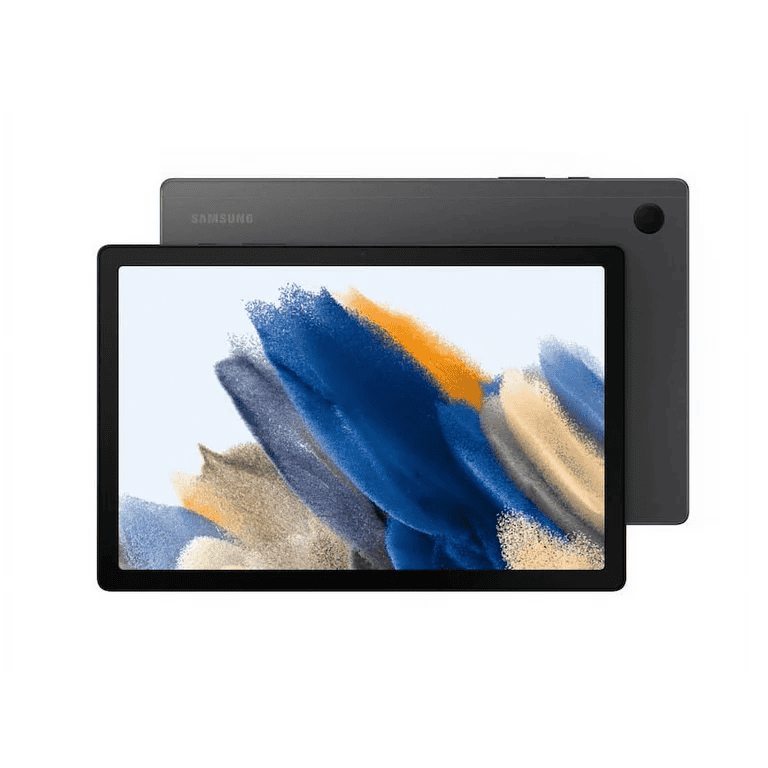
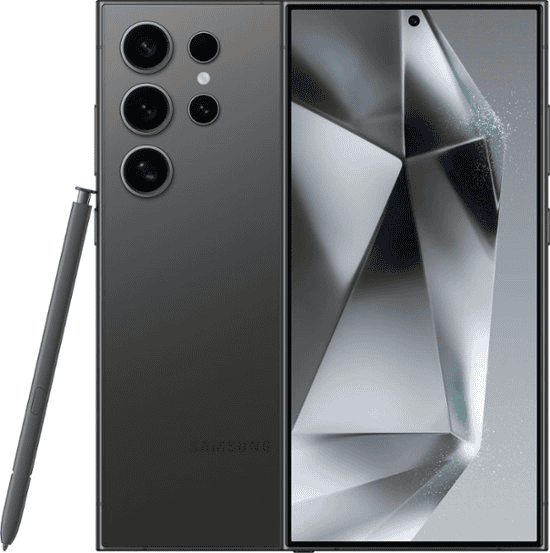
The short answer is yes! AirPods can indeed connect to Samsung devices. The magic lies in Bluetooth technology. Both AirPods and Samsung devices support Bluetooth, allowing them to pair and work together seamlessly. So, whether you have a Samsung Galaxy phone or tablet, you can enjoy your AirPods without any major hiccups.
But Wait, There’s a Catch: Limited Functionality
While AirPods connect to Samsung devices, you won’t experience the full range of features you get with Apple devices. This is due to Apple’s ecosystem integration, where certain features are exclusive to their devices.
Functionality Table: What Works and What Doesn’t
Making the Most of AirPods on Samsung: Workarounds and Apps
Even with limited functionality, you can still enhance your AirPods experience on Samsung devices:
Should You Buy AirPods for Your Samsung?
The decision to buy AirPods for your Samsung device depends on your priorities. If you prioritize seamless integration and full functionality, other wireless earbuds might be a better choice. However, if you already own AirPods or simply prefer their design and sound, they can still be a good option for your Samsung device, albeit with some limitations.
Key Takeaways
Compatibility and Pairing
When using AirPods with Samsung devices, it’s essential to understand they are indeed compatible and the pairing process is simple.
Checking Compatibility
AirPods, AirPods Pro, and AirPods Max work with most Samsung phones, such as Galaxy phones. These Samsung devices must support Bluetooth for a successful connection. Almost all modern Samsung smartphones have this feature, making them compatible with Apple’s AirPods lineup.
Connecting AirPods to Samsung Devices
To connect AirPods to a Samsung phone, start by opening the Bluetooth settings. It’s a straightforward process:
Next, prepare the AirPods:
Finally, return to your phone’s Bluetooth menu. The AirPods should appear on the list of available devices. Tap the AirPods to pair, and the status light should change from flashing white to a steady white, indicating a successful connection.
Functionality and Features
AirPods are compatible withSamsung and other Android devices, offering a range of functionalities with some limitations due to different operating systems.
Using Siri and Google Assistant
AirPods are designed for full Siri functionality when used with Apple devices. However, Android users won’t have Siri access but can use Google Assistant with additional apps such as Assistant Trigger. This app activates the Google Assistant through AirPods, although it may not match the seamless integration found in Apple’s ecosystem.
Audio Features and Controls
Despite the different operating systems, AirPods maintain sound quality when connected via Bluetooth to Samsung phones. Key features like Active Noise Cancellation (ANC), Transparency mode, and Adaptive EQ work as intended. Controls are more basic; for instance, ear detection or customizable double-tapping are typically restricted or unavailable.
AirPods on Android: Quick Audio Control Guide
Managing AirPods on Android
Android users should connect AirPods through the Bluetooth settings by holding the setup button on the AirPods charging case. Apps like AndroPods and MaterialPods can show battery levels and provide in-ear detection notifications. They even offer the ‘Find My’ feature for AirPods. However, features like spatial audio with dynamic head tracking, conversation boost, and ear tip fit test which leverage Apple’s H1 chip may not be accessible.