Downloading the iOS 18 beta profile can be an exciting step for tech enthusiasts. Apple’s first iOS 18 developer beta is now available following the WWDC 2024 keynote. If you have an iPhone or iPad, you may start experiencing the new features and enhancements introduced with iOS 18.
To get started, you need to have an iPhone or iPad running iOS 16.4 or later.This is important so your device can support the new beta profile. Once your device meets this requirement, you can download the developer profile through Apple’s website. Follow the instructions to add the profile to your device, and you’ll be ready to install the iOS 18 beta.
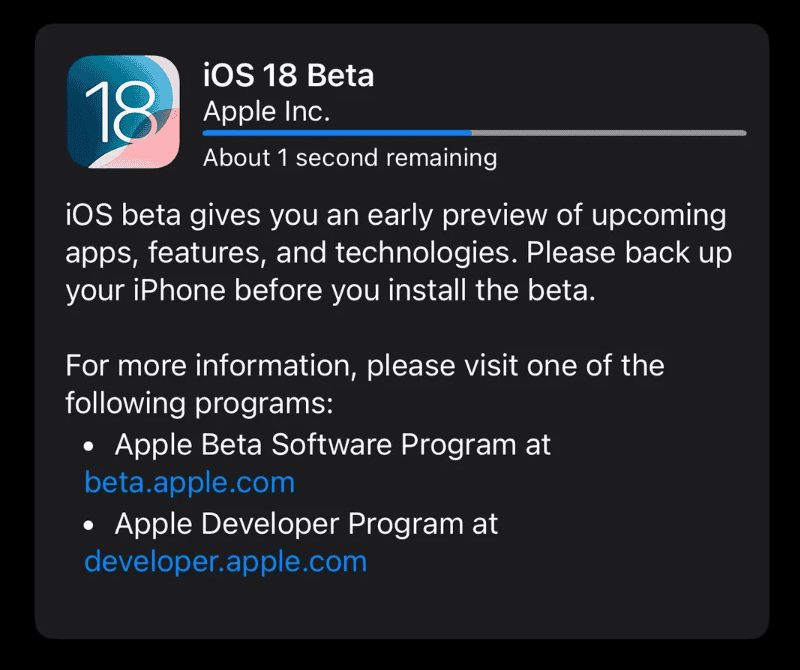
Installing the beta is straightforward. Launch the Settings app, go to General, and select Software Update. Here, you choose the Beta Updates option, and then select iOS 18. Your iPhone or iPad will start downloading the latest iOS 18 beta, giving you access to all itsnew features and improvements.
Remember to download iOS 18 you’re going to want to visit the developer website here:https://developer.apple.com/account/
Dive into iOS 18: Your Beta Profile Download Guide
Understanding iOS 18 Beta
Before you dive in, it’s important to know that beta software is not final. It might have bugs or glitches. If you’re okay with that, then getting a taste of the latest features before everyone else can be pretty exciting.
Who Can Download?
Anyone can download the public beta later this summer. But if you’re an Apple developer, you can get your hands on it right now through the Apple Developer Program.
Download Options
There are two main ways to get the iOS 18 beta:
Over-the-Air (OTA) Update
This is the easiest method, and it’s just like a regular update.
Manual Download with a Computer
If you have limited storage on your device or prefer using a computer, you’re able to try this method.
Remember to Backup!
Before installing any beta software, it’s crucial to back up your device. This way, you can easily revert to your previous iOS version if needed.
Get Ready to Explore!
Once you’ve successfully downloaded and installed the iOS 18 beta, it’s time to start exploring all the new features and improvements. Happy testing!
Key Takeaways
Getting Started with iOS 18 Beta
To start with the iOS 18 beta, you need to grasp the concept of beta releases, enroll in the Apple Beta Software Program, and check if your device is compatible.
Understanding Beta Releases
Beta releases let users try out new iOS features before the official release. There are two types: developer beta and public beta. Developer betas are for developers to test their apps with new features early. Public betas are available to everyone who joins the beta program. These betas might have bugs or issues, so it’s essential to back up your device before installing them.
Enrolling in the Apple Beta Software Program
To download the iOS 18 beta, join the Apple Beta Software Program. First, visit the Apple Beta Software Program website. Log in with your Apple ID. Follow the on-screen instructions and agree to the terms. Once enrolled, you’ll get access to public beta versions of iOS. If you are a developer, you must join the Apple Developer Program to access the developer beta.
Requirements and Compatibility
Before you install the iOS 18 beta, make sure yourdevice supports it. iOS 18 will work on various iPhones but check Apple’s list to be sure your device is compatible. You’ll also need an Apple ID and a stable internet connection. It’s smart to have thelatest version of iOSbefore upgrading to the beta. Always back up your data to prevent loss during the installation process.
Downloading and Installing iOS 18 Beta
Before diving into the steps for developers and public beta testers, it’s essential to understand the importance of backing up your data and following the correct installation steps.
Backup Before Installation
Backing up your iPhone is crucial. It prevents data loss during the beta installation.
Another method is using iTunes or Finder on a computer. Connect your iPhone to the computer, open iTunes or Finder, and chooseBackup Nowafter selecting your device.
