Years of photos suddenly missing from iCloud can be alarming.Many users rely on iCloud to store precious memories, so discovering that an entire year of photos has vanished is distressing. This article dives into why this might happen and what you can do to fix it. Losing precious photos from your iCloud library can be a frustrating experience. Often, the issue stems from simple oversights like iCloud Photos being disabled, insufficient storage, or photos hiding in the Recently Deleted folder.
Apple’s iCloud service was designed to seamlessly sync and store your photos across devices. Sometimes, technical glitches or user settings can lead to missing data. It’s important to check all possible reasons, such as hidden albums, or recent restorations that might have caused the issue.
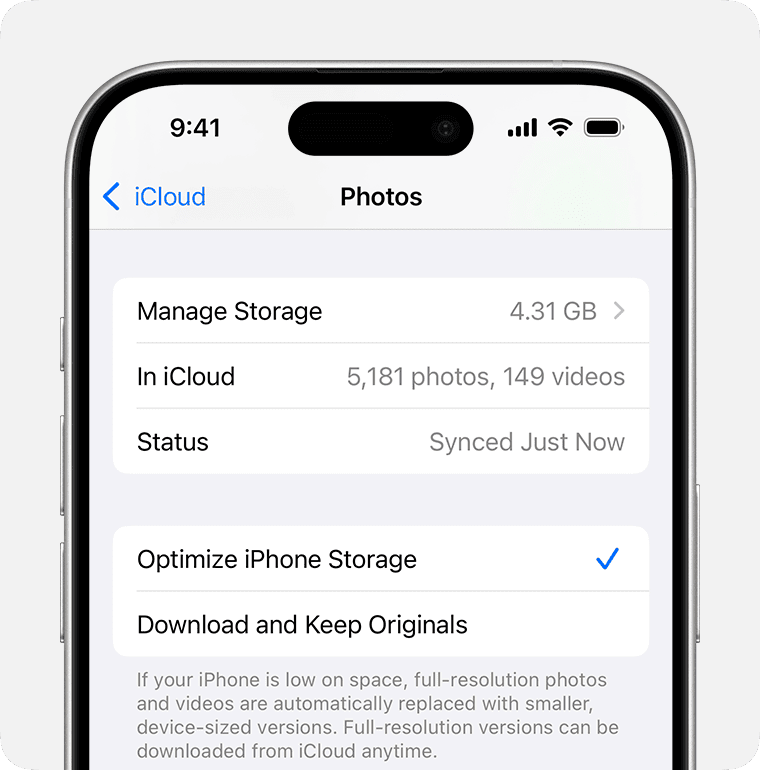
Troubleshooting missing photos may require you to look through your device settings and iCloud preferences. Checking hidden albums or the Recently Deleted folder can often resolve the issue. If the photos are still nowhere to be found, deeper system checks or data recovery methods might be necessary.
Troubleshooting iCloud Photo Loss
iCloud is a great way to keep your photos safe and accessible across all your devices. But sometimes, photos can seem to disappear. Don’t worry, they are likely still there – just hidden. Here are some common reasons why your photos might be missing and how to get them back:
1. iCloud Photos is Not Turned On
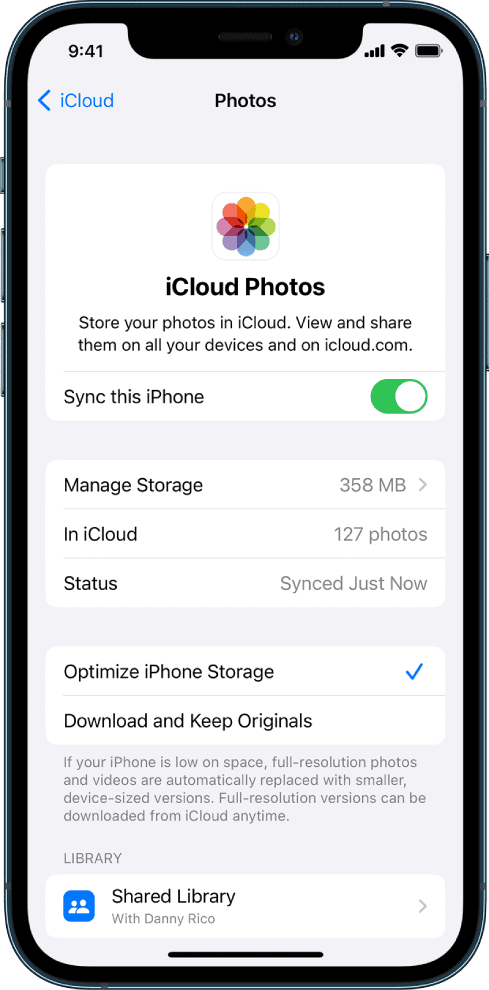
verify that iCloud Photos is enabled on all your devices. If it’s not turned on, your photos won’t upload to iCloud and sync across your devices.
2. Check Your iCloud Storage
If you run out of iCloud storage, your photos won’t upload. You can manage your storage by deleting files you don’t need or upgrading your storage plan.
3. Recently Deleted Folder
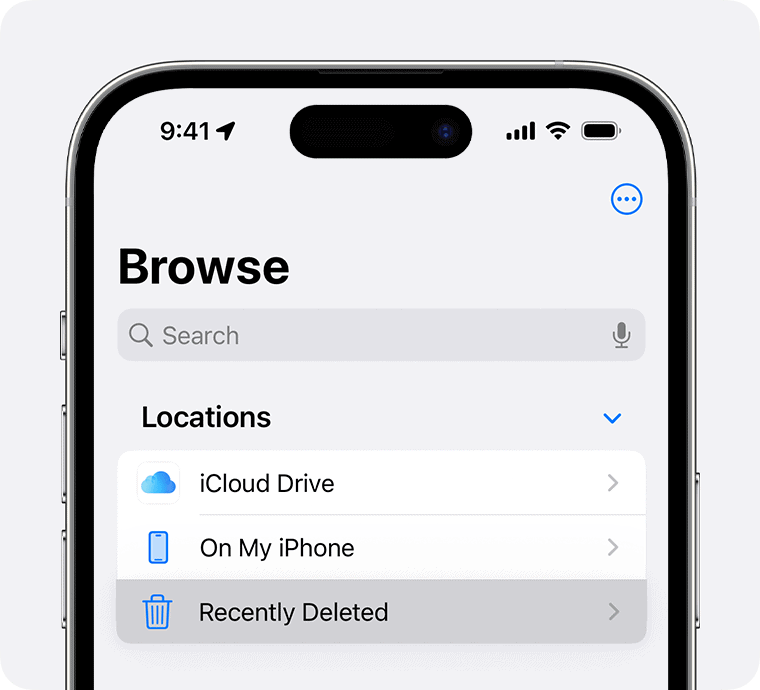
When you delete a photo, it goes to the Recently Deleted folder for 30 days before it’s permanently deleted. Check this folder to see if your missing photos are there. you may recover them from this folder if they are.
4. Incorrect Date and Time Settings
If the date and time settings on your device are incorrect, it can cause issues with iCloud Photos. Make sure your device is set to the correct date and time zone.
5. Filter or Sort Options
You might have accidentally applied a filter that is hiding your photos. Check your filter and sort options in the Photos app to make sure they are set correctly.
6. Sign Out and Back In to iCloud
Sometimes, simply signing out of iCloud and then signing back in can resolve syncing issues.
7. Apple Support
If you’ve tried all the above steps and your photos are still missing, you can contact Apple Support for assistance.
Additional Tips
Key Takeaways
Understanding iCloud and Its Photo Management Features
iCloud offers various tools to manage and store photos. These tools helpsync photos across Apple devicesand keep them safe with backup options.
The Basics of iCloud Photos
iCloud Photoslets users store their entire photo library in the cloud. This feature means photos are available on any Apple device. It also updatesphotos and videosautomatically. To enable iCloud Photos, users need to go to Settings, tap on their name, click on iCloud, then Photos, and turn on iCloud Photos. On a Mac, users should go to System Preferences, click on Apple ID, and then iCloud Photos. This integration provides easy access and storage.
Common Issues with iCloud Photo Syncing
Syncing issues are common. Photos may not upload or download correctly. Sometimes, users see delays in updates. One common fix is to check the internet connection. If it’s slow, syncing will be slow or might fail. Another issue can be limited storage space. iCloud offers only 5GB for free; more storage requires a subscription. Users can also try signing out of their Apple ID and signing in again. Sometimes the system needs a reset for syncing to work.
Checking iCloud Storage and Backup Settings
Checking storage is crucial. Go to Settings, tap on your name, then iCloud. Here, you can see how much space is left. If you’re running low, considerupgrading your plan.iCloud Backupshould also be on. This feature keeps your photos safe if you lose your device. To check, go to Settings, tap your name, iCloud, and then Backup. Ensure that iCloud Backup is enabled. This setting helps protect data and makes restores easier. Storage management is key to keeping photos accessible and safe.
Troubleshooting and Resolving iCloud Photo Issues
Photos missing from iCloud can be frustrating. This guide covers steps torestore, fix syncing problems, and useApple Supportto address these issues.
Restoring Missing Photos from iCloud
If photos are missing from iCloud, check theRecently Deletedfolder in the Photos app. Go toPhotos>Albumsand find theRecently Deletedalbum. Photos remain here for 30 days before being permanently deleted.
If you don’t find your photos there, you might have hidden them. Open thePhotosapp, tap onAlbums, and scroll toHidden. If you see your photos, select and unhide them.
For older backups, access the iCloud website. Log in with your Apple ID, go toPhotos, and check the different albums. You may find photos that aren’t on your device.
Fixes for Syncing and Connectivity Problems
If your photos are not syncing across devices, start by checking your internet connection. A stable Wi-Fi network is crucial. Make sure your device is connected to a reliable Wi-Fi to avoid interruptions.
Next, verify that iCloud Photos is turned on. On an iPhone or iPad, go toSettings>[your name]>iCloud>Photosand switch oniCloud Photos. On a Mac, go toSystem Preferences>iCloud, clickOptionsnext toPhotos, and selectiCloud Photos.
Insufficient iCloud storage can also cause syncing issues. Check your iCloud storage space inSettingsand buy more if needed. It ensures enough room for all your photos and videos.
Utilizing Apple Support and Resources
When issues persist, utilizing Apple Support can help. Visit the Apple Support website for FAQs and troubleshooting tips. The site includes step-by-step guides to resolve problems with iCloud Photos.
Consider using the support app on your device for personalized help. Open the app, tapGet Support, and find help with iCloud Photos. Apple’s community forums also provide solutions from other users who have faced similar issues.
For technical issues, contact Apple Support directly. They can guide you through advanced troubleshooting, ensuring your photos are recovered and synced correctly.
